
How to access the file system
Here is an overview of how to work with FTPs in Sage X3 Cloud portal.
FTP Access allows you to upload and download files on some of the X3 directories. It can be used to perform batch integrations and to import/export entire folders.
You can manage FTP users for your customers and use them to access their file system for X3 deployments.
Manage FTP users
Only administrators can create, edit and delete FTP users.
Create an FTP user
-
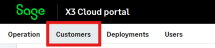
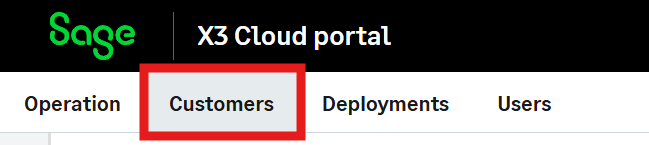
Go to Customers.
-
On the left of the page, select the user you want to update from the customer list.
-
Open the FTP User List tab.
-
Select Create FTP User.

-
Enter an FTP user name. The system will automatically use the short code associated to your customer.
-
A window displays with a generated password.
Note - warningMake sure you save this password. If you lose your password, you will have to generate a new one.
-
Select Close to go back to the customer page.

Manage existing FTP users
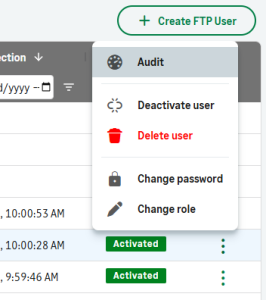
As an administrator, you can perform other actions on an existing FTP user by clicking on the More actions icon to the right of the user line: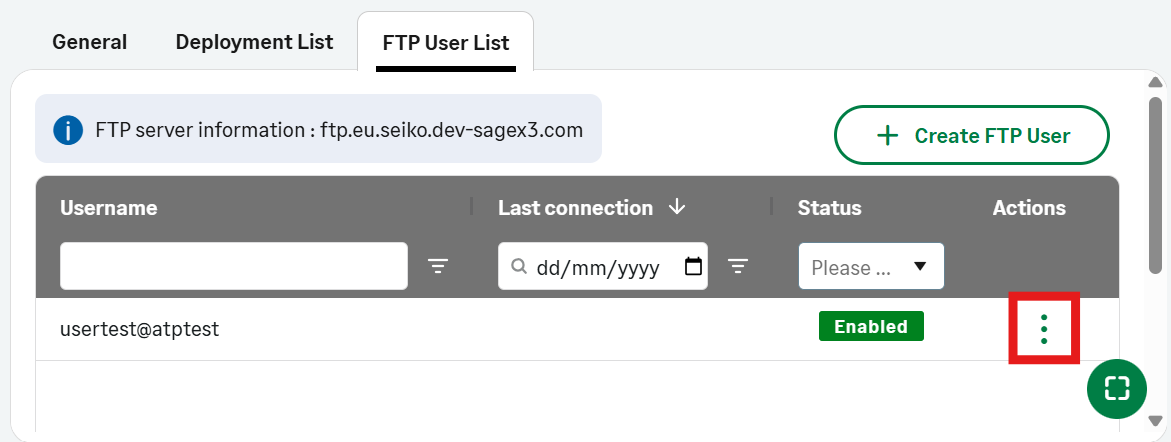
-
Deactivate the user.
-
Delete the user.
-
Ask for a new user password.
Note - warningMake sure you save this password as it will not be displayed again.
-
Change the user role.
FTP user roles
FTP access and folder visibility depend on the role assigned to the user:
-
Full access: Access to the standard shared X3 file system and X3 services add‑ons.
-
X3 developer: Access to the standard shared X3 file system only.
-
X3 services developer: Access to X3 services add‑ons only.
Password expiration
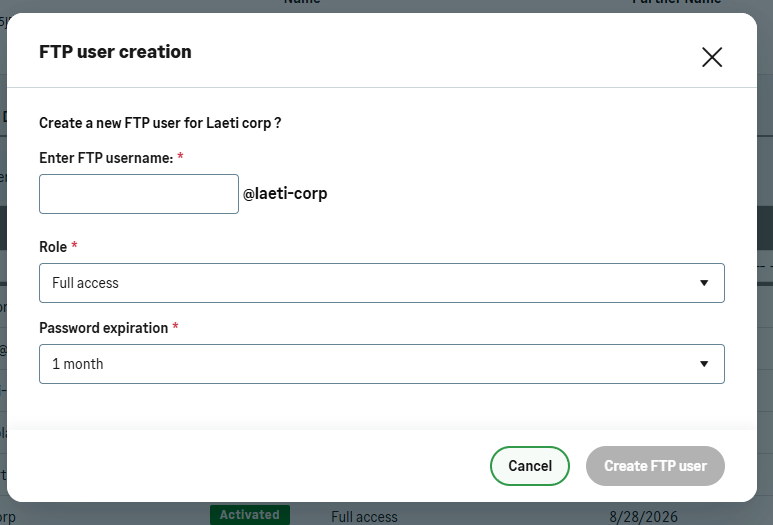
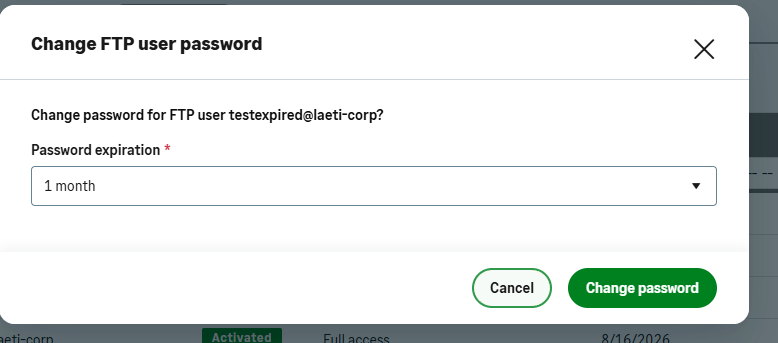
FTP user passwords expire after a configurable period. You can set the expiration time when you create and you modify your password.
-
Password expiration can be configured between 1 and 12 months.
-
When a password expires, the FTP user can no longer log in.
-
An administrator must generate a new password before the user can access FTP again.
Login attempt limit
FTP users are automatically locked out after 10 consecutive failed login attempts:
-
The number of allowed failed attempts can be set per environment between 3 and 20 attempts.
-
When the limit is reached, the FTP user is automatically locked out.
-
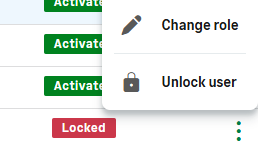
An administrator can unlock the user from the Partner Portal.

Connect to an FTP
Once you have created an FTP user, you need to connect the user.
You can use any FTP client. The following instructions use WinSCP on Windows:
-
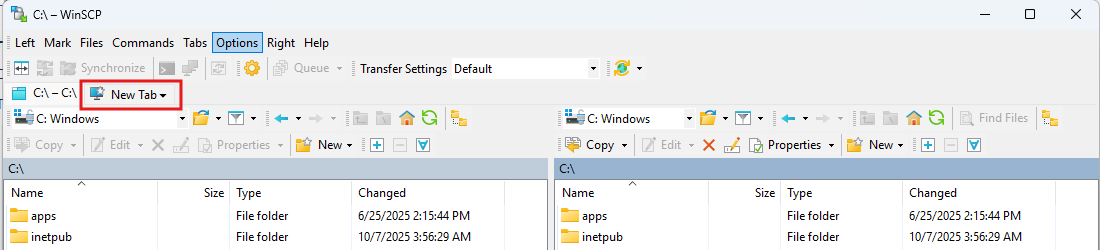
Open WinSCP and select New Tab.
-
Select New Site and fill in the fields:
-
File protocol: FTP
-
Encryption: TLS/SSL Explicit encryption
-
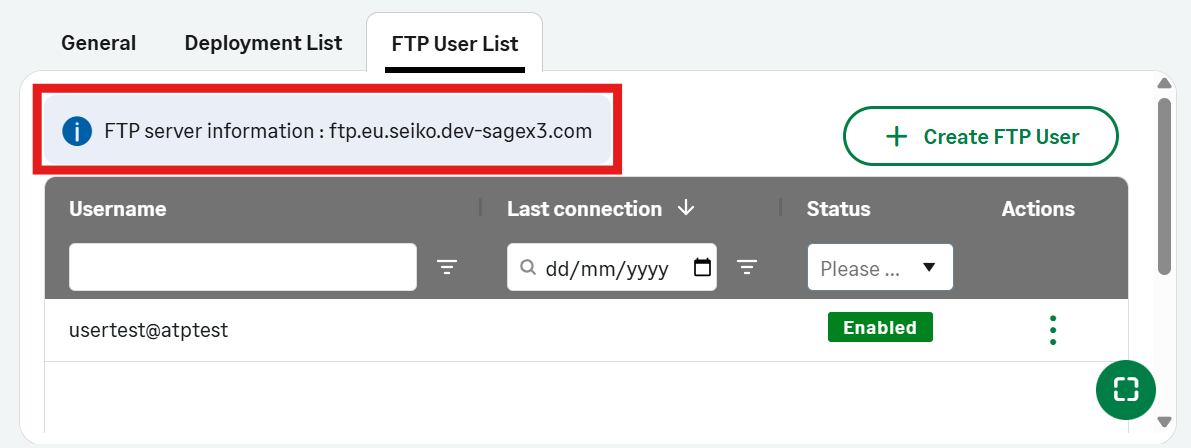
Host Name: provided in the portal. You can find your host name in the FTP User List tab:
-
Port: 21 (default)
-
Username: the short code associated to the user
-
Password: the password associated to the user
-
-
Select Save.
-
When prompted, select OK.
-
Select Login to connect.
Once connected, you will see the available folders.
Folder organization
Folder visibility depends on the FTP user role.
There are two categories of folders:
-
Standard shared X3 file system
-
X3 services add‑ons
Standard shared X3 file system
At the root FTP level, you will see one folder per deployment.
Each deployment folder contains:
-
Full_X3_Export
-
Full_X3_Import
-
One folder per X3 folder
Each X3 folder contains the following subfolders:
-
IMP
-
EXP
-
ATT
-
PATCH
IMP, ATT, and PATCH folder behavior
Select an X3 deployment directory to open the deployment’s FTP section.
-
Files dropped into IMP, ATT, or PATCH are scanned and validated.
-
Files are copied into the corresponding X3 directory.
-
Subdirectories are replicated.
-
After the files are copied, they are removed from the FTP folder.
Use cases:
-
IMP: batch tasks and imports
-
PATCH: patch deployment
-
ATT: attachments
EXP folder behavior
-
Files generated in the X3 EXP directory are uploaded to the FTP EXP folder.
-
Files are not removed from the X3 file system after upload.
Configure X3 jobs for FTP export
To export files from X3 to the FTP endpoint, X3 jobs must write files under:
/folders/<FOLDER_NAME>/EXP
For instance, a file created in X3 under /folders/SEED/EXP/example/file.txt will be available on FTP under /<customer>/<deployment>/SEED/EXP/example/file.txt.
Configure X3 jobs for FTP import
To import files from FTP into X3, files must be uploaded to the appropriate FTP import folders.
Depending on the type of import, upload files to one of the following locations:
/<customer>/<deployment>/<FOLDER_NAME>/IMP
/<customer>/<deployment>/<FOLDER_NAME>/ATT
/<customer>/<deployment>/<FOLDER_NAME>/PATCH
For instance, a file created in X3 under /<customer>/<deployment>/SEED/IMP/example/file.txt will be available on FTP under /folders/SEED/IMP/example/file.txt.
When a file is uploaded to one of these folders:
-
The file is scanned and validated.
-
The file is copied into the corresponding X3 directory.
-
Subdirectories are replicated.
-
After the file is copied to the X3 file system, it is removed from the FTP folder.
FTP and X3 file synchronization summary
| Source | Folder | Direction | Removed from source |
|---|---|---|---|
| FTP | IMP | FTP > X3 | Yes |
| FTP | ATT | FTP > X3 | Yes |
| FTP | PATCH | FTP > X3 | Yes |
| X3 | EXP | X3 > FTP | No |
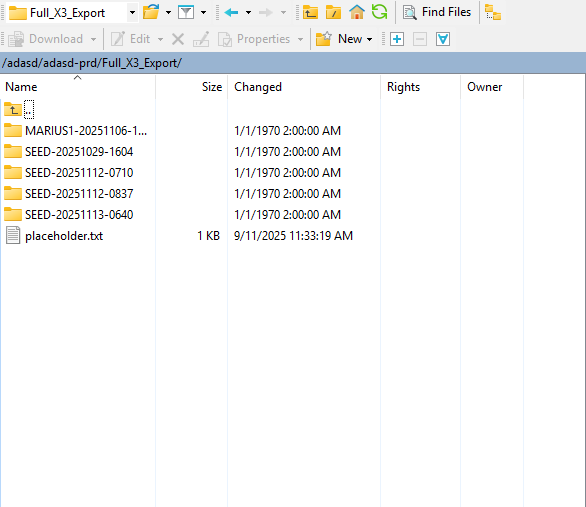
Full_X3_Export
Contains ZIP files generated by full folder exports.
You can download these files directly.
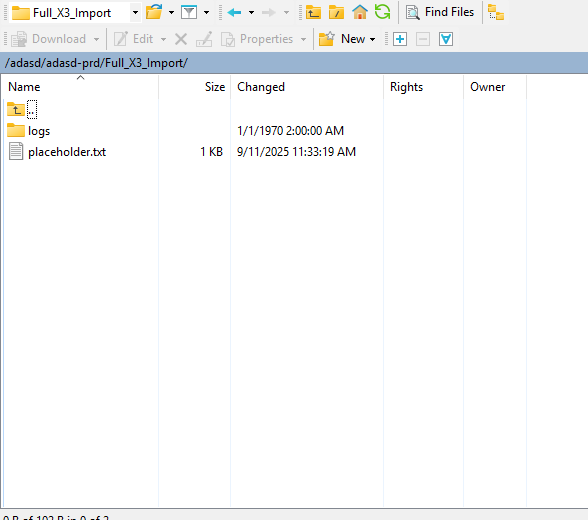
Full_X3_Import
Used to upload folders in ZIP format.
See How to import a folder for more details.
X3 services add‑ons
If your role allows it, the root FTP folder contains x3-services-addons.
This folder includes:
-
One subfolder per deployment
-
One subfolder per X3 folder
You can upload X3 services add‑ons ZIP files here.
For more information about building and managing X3 services add‑ons, read our dedicated page.
Important considerations when using the FTP service
File transfer delay
There may be up to one minute of delay between the upload of a file and its appearance in the X3 directory or FTP folder.
Automatic cleanup
Files stored in the EXP export directory under FTP are automatically deleted after three months.
Do not use the EXP folder for long‑term storage.