
Web services Connection pools management
Presentation
The console is used to configure the groups of Web-services connections for the Safe X3 Web Server. An additional tab is available within the Safe X3 Web Server configuration panel. To access the configuration of a group of connections, the Safe X3 Web Server must be configured and the services launched. If it is not the case, the tab is not active.
It is mandatory to publish solutions in order to configure groups of Web-services connections. These groups are configured in order to establish a physical connection to a solution folder using a configured processing server of the solution.
Description of the tab
The configuration screen for web-services connection groups is mainly based on three components.
The tool bar
The tool bar includes the following elements:
-
 : these buttons are used to add or delete a group of web-services connections in the tree structure.
 -
 : these actions are available in a group of connections depending on its status (launch, stop, re-launch, suspend).
 -
 : this button is used to link the configuration from the Safe X3 Web Server.
Tree structure view configuration
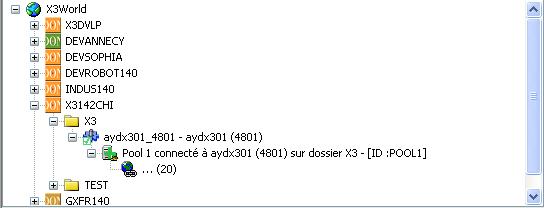
This tree structure represents the Safe X3 Web Server configuration and the configuration of the web service connection groups.
The following are found, in order :
- The X3World node, which is the central point of the Safe X3 Web Server configuration,
- the solutions published on this Safe X3 Web Server,
- the folders published on this Safe X3 Web Server for the selected solution,
- the process servers configured for the solution,
- the groups of web-service connections connected to the process server for the solution,
- the physical connections to the selected connection group.
The status of the web-service connections group component is represented by its icon:
-
 : the component is in addition mode.
 -
 : the component is in deletion mode.
 -
 : the component is configured, launched and in service.
 -
 : the component is configured but not active.
 -
 : the component is configured, launched but not in service.
 -
 : the component is being updated, following a parameter change.
 -
 : the component status could not be determined.
The actions that can be performed on a connections group depend on the status. After adding, deleting or modifying parameters, you need to save the new configuration at sever level, by clicking the Save button, enabled after any modification to the configuration.
The list of parameters to be configured for a group of connections
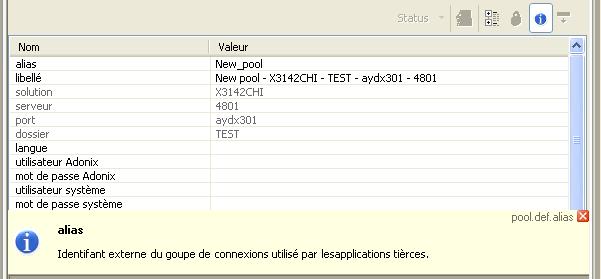
Double-clicking on a parameter to modify its value thanks to an entry help assistant. An expert mode is available to configure more of the parameters and the information button displays the setup definitions.
Adding a group of web-services connections
To add a group of Web-services connections, select a node of the process server type from the configuration tree structure.
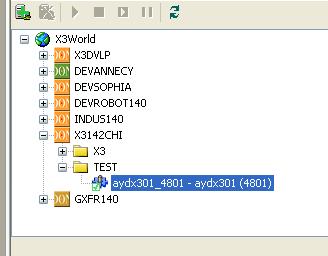
The button used to add connection groups is enabled in the tool bar. Click this button. A group is connected to the selected process server.
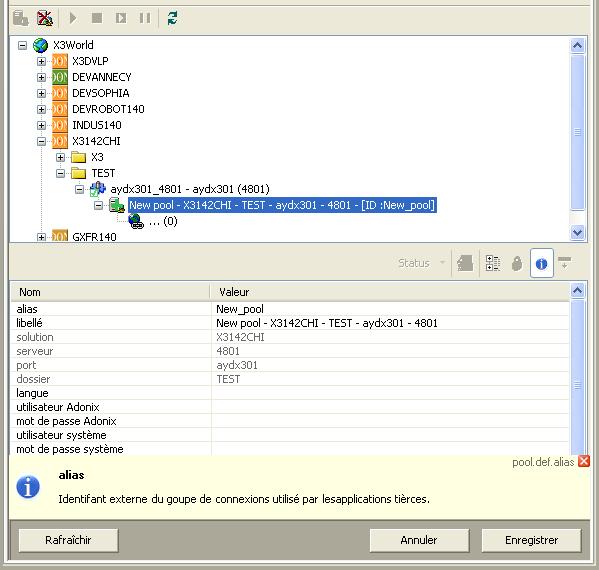
Enter all the visible parameters within the parameters screen and click Save.
You can add, delete and modify several connection groups and altogether save the configuration by clicking Save.
Deletion of a web-service group of connections
1. To delete a Web-services connections group, select the group icon in the tree structure.
2. Click the group deletion button in the tool bar. The group icon changes, which indicates that the group is in deletion mode.
3. Click Save to record the modification or click Cancel to revert your action.
When clicking Save or Cancel (if enabled) all the modifications applied to the configuration are respectively recorded or reverted on all the modified groups.