
rocurar
Installing the Syracuse Web Server
This document describes how to install the Syracuse web server and how to create the configuration file to work with the MongoDB database.
Prerequisites
Before running the V12 web server installation, make sure that:
- All requirements (for Windows or Linux) are met.
- You have configured the Sage X3 solution with the configuration console.
- MongoDB was installed, and you have access to its server names, as well as its corresponding port numbers.
- You have the license file for the Versions 7 and above web server installation.
Note: Elasticsearch is not a mandatory prerequisite anymore for Syracuse Web Server. Therefore, it is no longer configured during the Syracuse Web Server setup process. You can check the documentation on how to configure Elasticsearch for more information.
Running the Syracuse web server installation
- Double-click the .jar file to start the installation procedure.
- Select the language for the installation procedure.
- Select:
- New installation if the Versions 7 and above web server has not been installed yet.
- Modify installation if you want to modify an existing installation.
- Enter the required information:
- An identifier for the Syracuse node.
- The path for the storage of logging information files.
- An HTTP service port number available on your server (the default port is 8124).
- The number of Syracuse processes required (two are available by default).
Note: Setting two Syracuse processes enables the load balancer mode (or nanny mode). - The information for the system account that will be used to run the service.
This account needs to have an existing profile (not temporary), as well as the rights to log as a service.
On UNIX, both a user and a group have to be entered.

- As you have already set up MongoDB, enter the host name and the port number (including the full qualified
domain name if you use an SSL connection).
Select The server uses and accepts only SSL encrypted connections and enter the corresponding information, if applicable.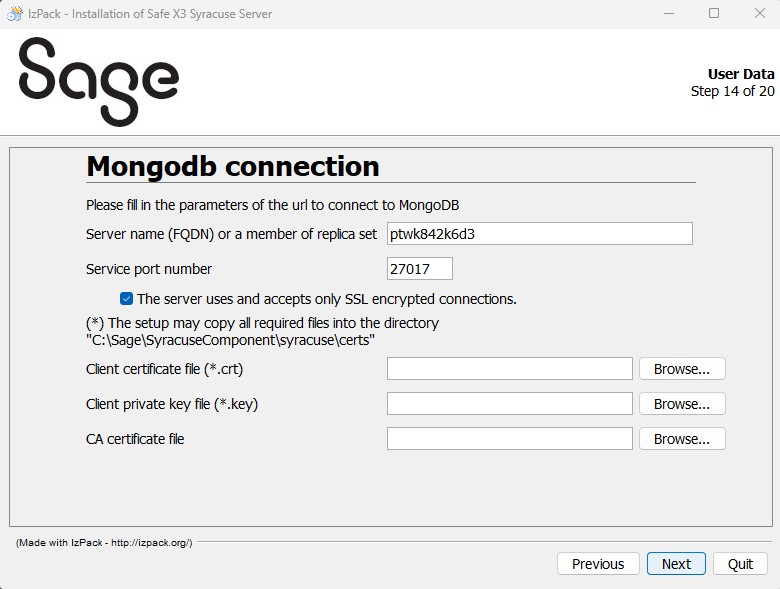
Note: The Client certificate file and the Client private key file should only be entered if you manually installed the certificates.Refer to Certificate Installation for the rest of the installation procedure.
- After the Syracuse web server installer connects to MongoDB using the defined MongoDB service port, the installer checks whether a "syracuse" database exists. Since release 2025 R2/V12.0.38, a new automatic mechanism has been put in place during the Syracuse web server installation in order to detect if a license exists yet for a given Sage X3 solution. This solution was especially required for a Sage X3 solution with Multi-Syracuse architectures. The mechanism of checking for a "syracuse" database in MongoDB is enhanced by checking for a valid license in the "license" collection. If a valid entry is detected, the following pop-up is displayed:

If no "syracuse" database is found on the MongoDB server after the connection to MongoDB is configured, the Syracuse web server installer requests you to upload your Sage product license: