ISR in sales invoices
QR-bills replaced the ISR since June 30, 2020. However, invoices with ISR can still be generated during a transitional period.
You can generate ISR or QR sales invoices. This is defined at the company level.
In the sales process, the ISR reference number is generated when you print the invoices, and the ISR Inpayment slip is printed on the invoice form. This functionality is available in the Sales invoices (GESSIH) and A/P-A/R accounting Customer invoices (GESBIC) modules, but not for intercompany invoices.
Prerequisites
These codes need to be active.
- KSW - Swiss localization
- MUL - Multi-company business partner
SWICUSBVR - Swiss ISR usage sales (LOC chapter, SWI group). Set to Yes at the company level.
Configuring the ISR reference number structure
The ISR reference number is always 27 or 16 digits. The length to use needs to be agreed on with the bank.
The information included in the reference number is defined by the setup configuration. Because the last character is an automatically calculated check digit, the distribution of the first 26, or 15 characters, can be configured.
The configurable part can consist of up to 4 components. The position and length are variable. For each component, there are two parameters in the LOC chapter, SWI group that each contain the start and the end position in the generated ISR reference number.
The following content can be included in the reference number.
ISR customer identification ([F:BAN]BVRCUSTID)
The ISR customer identification is no longer mandatory for QR-bills, but it can still be used as part of the reference number to align with your bank.
Invoice date (F:SIH]ACCDAT)
Customer number ([F:SIH]BPRPAY)
Invoice number (F:SIH]NUM)
The standard settings are:
- ISR customer identification: Position 1 to 6
- Invoice date: Position 7 to 10
- Customer number: Position 11 to 16
- Invoice number: Position 17 to 26
If the content of an element is shorter than the configured length, it is filled with leading zeros.
Bank determination for payments
To print the ISR Inpayment slip, the company’s bank details, to which the customer payment is made, are required. The determination of this company bank follows this hierarchy:
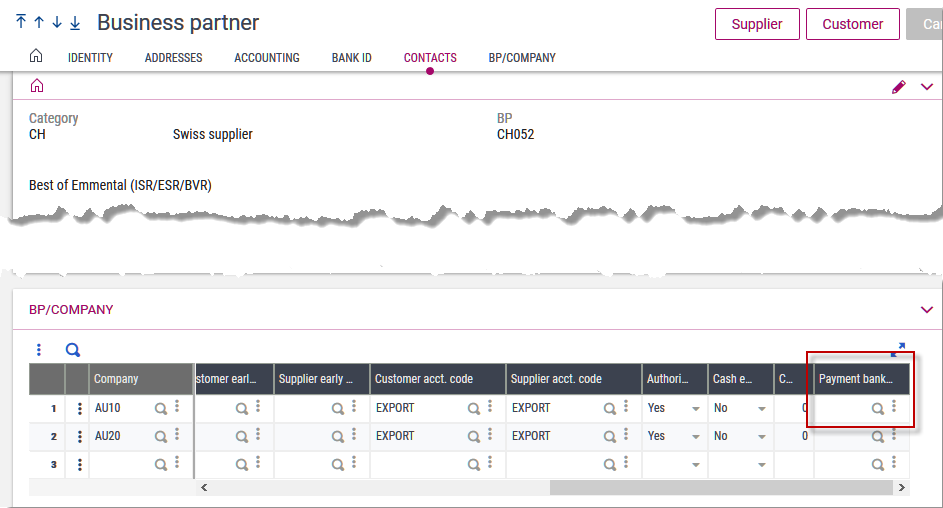
- Company information of business partner: Payment bank ISR/QR field (PAYBANBVR field in the BPEXCEPT table)
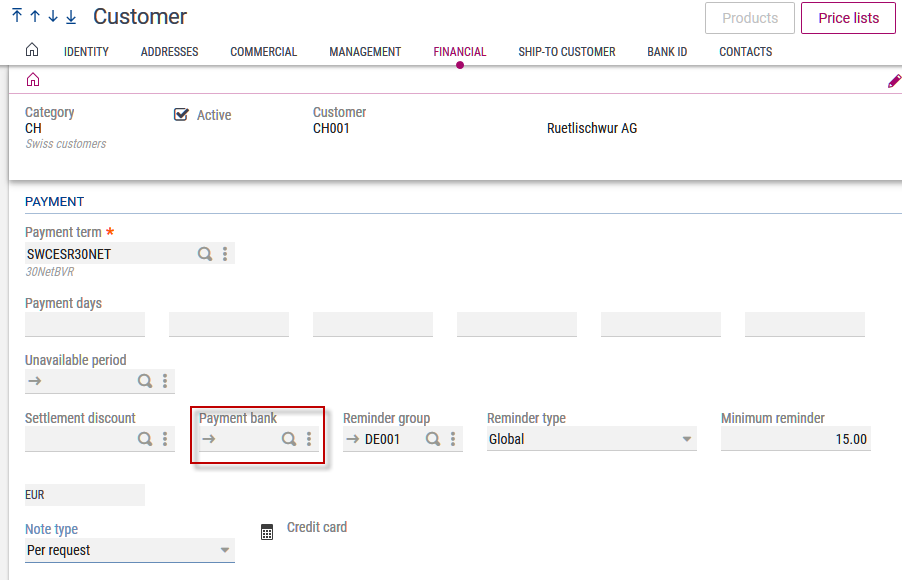
- Payment bank setting of the customer: Payment bank field (PAYBAN field in the BPCUSTOMER table).
- Payment bank of the site: Payment bank field (PAYBAN field in the FACILITY table).
Prerequisites for printing
The following information is required for printing the ISR Inpayment slip:
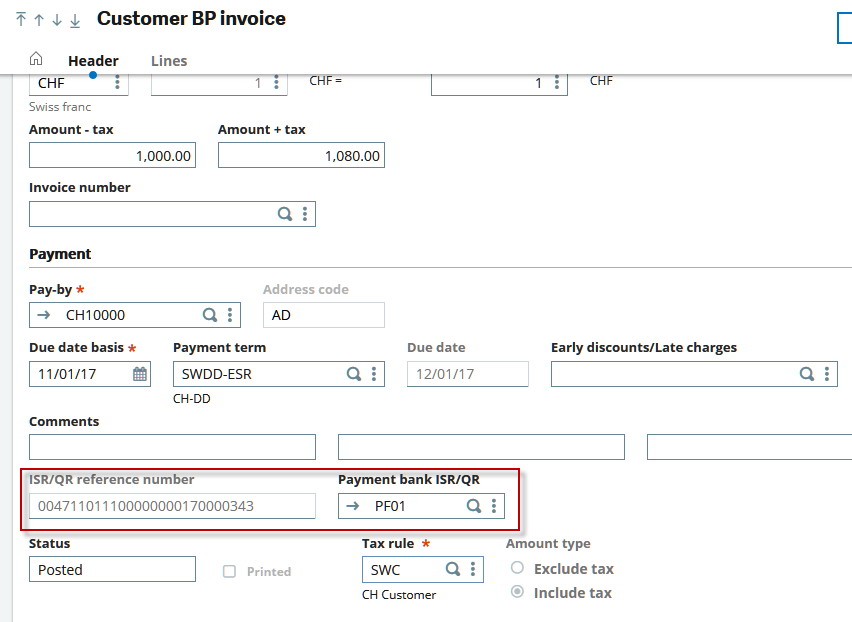
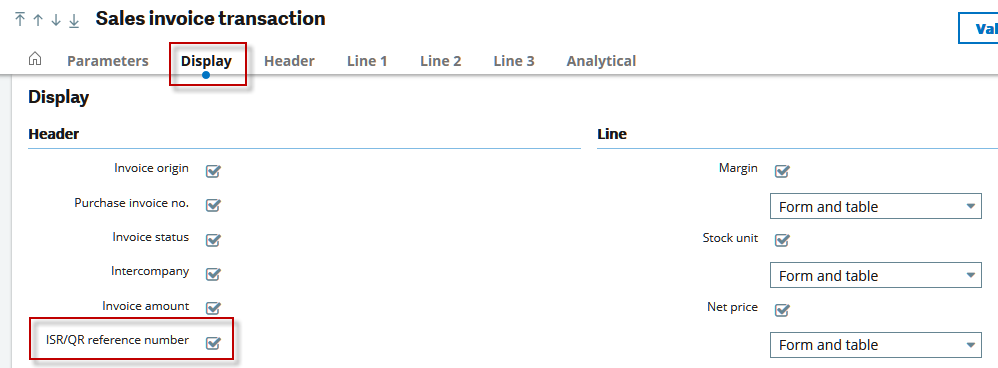
- ISR/QR reference number: Automatically generated from the invoice and common data while saving an invoice according to the configuration parameters for the structure of the reference number.
- Payment bank ISR/QR: Automatically determined and can be overwritten depending on the transaction settings.
- ISR customer no. and ISR customer identification of the payment bank: Entered in the bank management for the company bank (see Bank details for the company). In the ISR customer no. field, enter the PostFinance ISR customer no.
If you do not handle ISR with a PostFinance account, but with another external account, your bank will tell you the ISR customer number to use and an additional ISR customer identification that needs to be used for the ISR reference number generation. Enter the ISR customer identification in the Customer ID ISR field.
- Address of the recipient: Ddetermined by the payment bank.
- Address of the pay-by: Determined by the invoice.
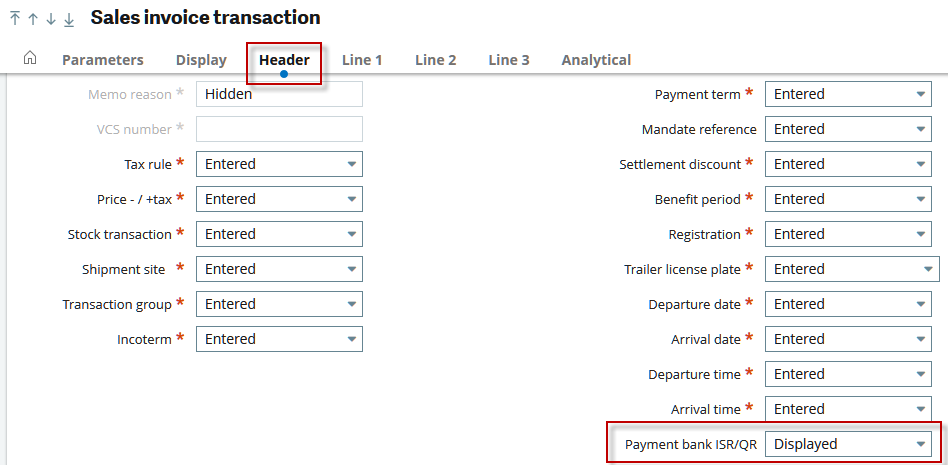
Paper tray control for ISR forms
To print the ISR on a separate sheet in a pre-printed form, use paper tray control settings.
The table below shows a 4-page print job with a paper tray change before the last page, controlled by the Standard paper tray and ISR paper tray settings. The paper tray numbers of the printer are specified here. A paper tray change occurs when these 2 settings have different values. The ISR payment slip is always printed on a new page.
|
|
Paper |
Paper tray |
|---|---|---|
|
Invoice page 1 |
Blank paper |
1 |
|
Invoice page 2 |
Blank paper |
1 |
|
Invoice page 3 |
Blank paper |
1 |
|
ISR |
ISR form |
3 |
Creating sales invoices
Open: Sales > Invoices > Invoices
To generate a Swiss invoice with an ISR Inpayment slip, an invoice form needs to be used that is prepared for ISR printing. When printing the invoice, select the SBONFACP form:
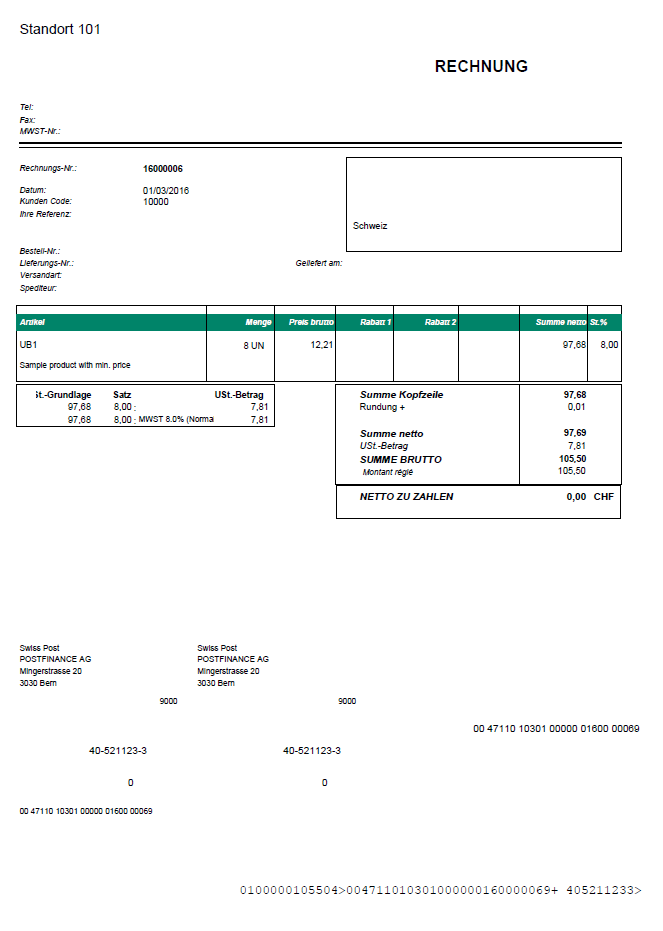
The ISR Inpayment slip is printed at the end of the invoice on a separate sheet. You can print the Inpayment slip from a different paper tray, see Prerequisites for printing.
The printing process uses the ISR reference number generated when saving the invoice and the determined ISR payment bank. This data remains unchanged even if the invoice is printed again.
Creating A/P-A/R accounting customer invoices
Open: A/P-A/R accounting > Invoicing > Customer BP invoices
To generate a Swiss invoice with ISR Inpayment slip, a specific invoice form has to be used that is prepared for ISR printing. When printing the invoice, select the BPCINV form.
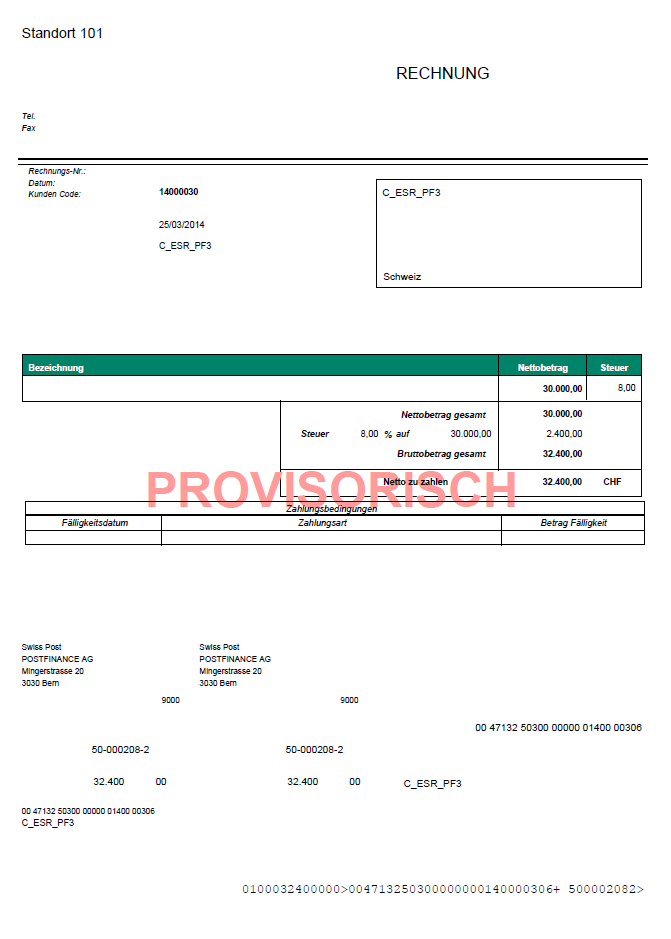
The ISR Inpayment slip is printed at the end of the invoice on a separate sheet. You can print the Inpayment slip from a different paper tray, see Prerequisites for printing.
The ISR reference number and the payment bank ISR/QR generated when the invoice was saved are used in the printing process: