
Setup
Access to the dedicated functions
Open: Stock > License plate numbers
Overview of the common data setup
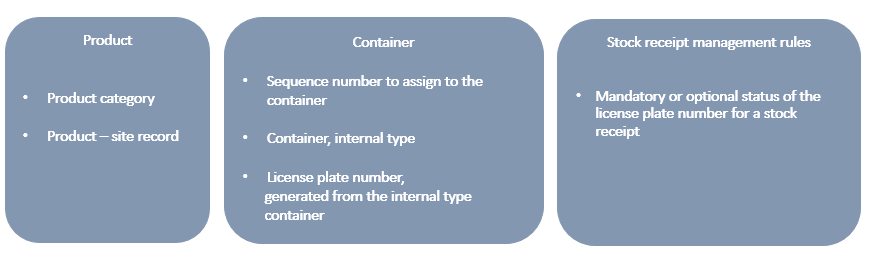
Definition and use
|
FUNCTIONS/ |
Definition and use |
|---|---|
|
Open: Common Data > Logistics tables > Container |
|
|
Containers
|
Used to:
|
|
Open: Common Data > Products > Products-sites |
|
|
Products-sites |
Used to:
|
|
Open: Setup > Stock > Stock management rules Open: Common Data > Products > Product categories |
|
|
Stock management rules
Product categories
|
Used to:
|
|
Open: Stock > License plate numbers > |
|
|
License plate numbers
|
Used to:
|
|
License plate number creation
|
Used to:
|
Detailed view
- Structures (GESANM)
- Container (TABCONTAINER)
How to create and set up the various license plate numbers?
-
Sequence number creation
Open: Setup > General parameters > Sequence number definition > Structures
Before creating the license plate number, you must create a sequence number.
This sequence number can include up to 18 characters.A sequence number is mandatory for mass creating license plate numbers. -
Creating an Internal type container
Open: Common Data > Logistics tables > Container
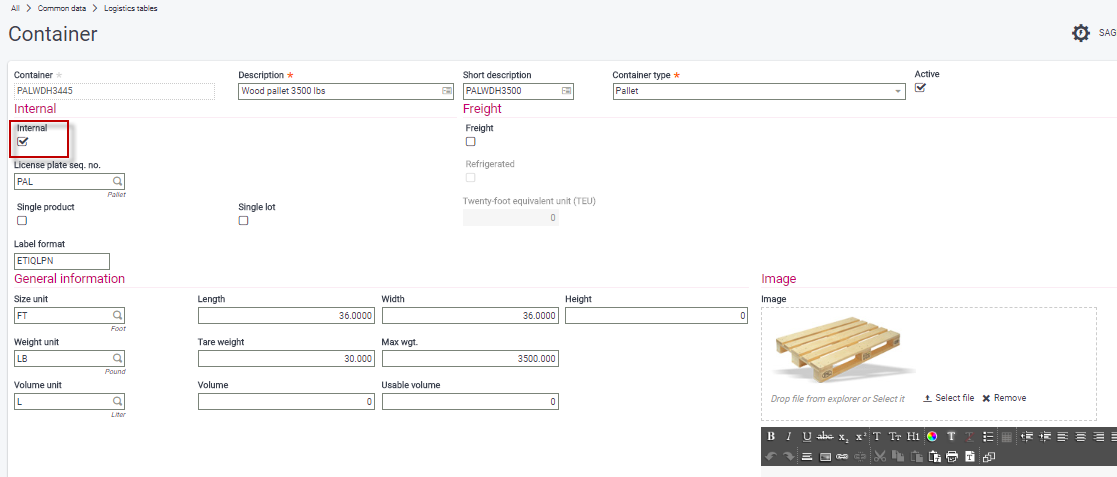
An internal container is a container that has been defined in the TABCONTAINER table. It must be set to the Internal type. There are two container types: Internal containers are used for logistics operations within the warehouse, and Freight containers are used for shipments and transportation (Purchasing logistics).
The license plate numbers are generated from a container, based on the sequence number assigned to it.
To create an internal container:
- Click the Create action.
- Set the container code.
- Select the container type: pallet, pack, barrel, big bag, (etc.). These values are contained in a dedicated local menu available for setup.
- Enter the sequence number. If the sequence number is not entered, this implies that you want to enter the number of the container when you create it.
- Specify whether this is a single-product or single-lot container. You can modify these characteristics if needed during the license plate number generation stage.
- Enter the report code for the bar code labels to be printed. A standard report code is delivered by default: ETIQLPN (LPN for License plate number and ETIQ for label (‘Etiquette’ in French)).
- Enter the physical characteristics of the container: Size and capacity. This data is for information only.
-
You can also add a picture and a description.
How to set up products to be managed in stock on logistics units?
- Product categories (GESITG)
- Products (GESITM)
- Products-sites (GESITF)
Product categories
Open: Common Data > Products > Product categories
-
Click New.
Enter the information required to create the product category, in particular, in the Management section.
- The product must be managed in stock.
- Enable the Location management.
- Enable the License plate number management (LPNMGTCOD field in the ITMCATEG table). The License plate number management can only be accessed when the Location management is enabled.
- Click Create.
Products
Open: Common Data > Products > Products
- Click New.
- Select a product category that authorizes the management of license plates.
- Enter the information required to create the related product record.
- Click Create.
Product-sites
Open: Common Data > Products > Product-sites
- Click New.
- Enter the information required to create the related product record for a given site.
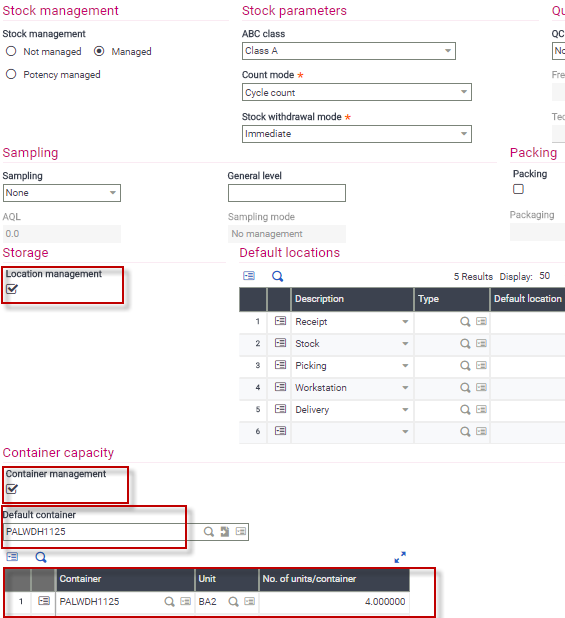
- The product setup and product category are recovered on the product-site.
- Check that the license plate number management is enabled. It can be enabled or disabled at the level of the product-site record. It can only be enabled if the Location management is enabled.
- Enter the Default container (TCTRDEF field). This information is optional, but this value will be initialized on the document line when a product is received into stock.
Enter the container capacity table, as shown below:
Container
Unit
No. of units per container
Selection of internal containers: only Internal type containers can be selected.
Link to Container TCTR (TABCONTAINER table).Selection of the existing unit for the product: stock or packaging unit
(PCU field).Entry of a number of units for the container
(TCTRPCUCOE field).This capacity table is only used for on-the-fly creation.At least one line must be entered for the on-the-fly creation to be available.
There is no consistency check or threshold if the capacity is exceeded while handling stock.
How to define a stock receipt with or without a license plate number?
Stock management rules (FUNSTORUL)
Product category (GESITG)
Stock management rules
Open: Setup > Stock > Stock management rules
The stock management rules are used to indicate if the license plate number is mandatory or optional, for each receipt movement.
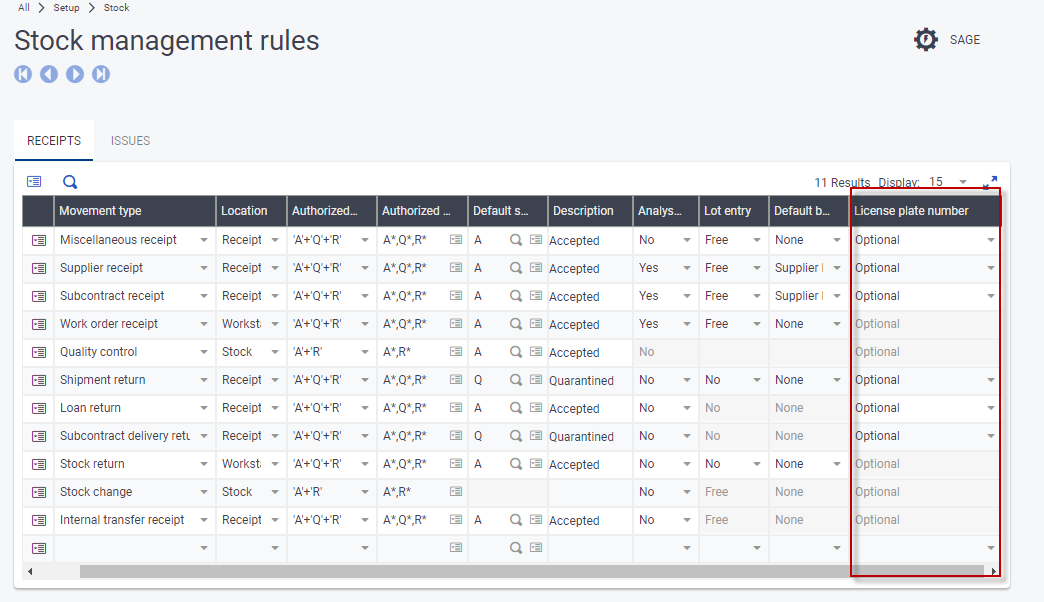
This applies to the following receipt movement types:
- Miscellaneous receipt
- Supplier receipt
- Receipt for subcontract
- Delivery return
- Loan delivery return
- Delivery return for subcontract
Product categories
Open: Common Data > Products > Product categories
The setup of Stock management rules is used on the Product category. It can be modified for each category.
The product category can also be set by site. In this case, the setup can even be adjusted to each product-site category.
In the Receipts section, indicate if the license plate number is mandatory or optional for each stock receipt movement of the product:
- If the license plate number is mandatory, then it must be entered on the document line or line details.
If no license plate number is selected on the line or in the details, you can create a license plate number on the fly, based on the setup of the container capacity table of the product-site, and on the information entered on the receipt document line. If the capacity table is blank, the on-the-fly creation is not performed and the receipt document is not generated. The log file describes this information. - If the license plate number is Optional, then it is optional on the document line or line details. The on-the-fly creation cannot be performed. The document is generated with no license plate number.
How to create license plate numbers?
- Container creation (CRELPNMA)
- License plate numbers (GESLPN)
Mass creation
Open: Stock > License plate numbers > License plate number creation
From the menu dedicated to the management of license plate numbers, you can launch a utility for mass creating license plate numbers.
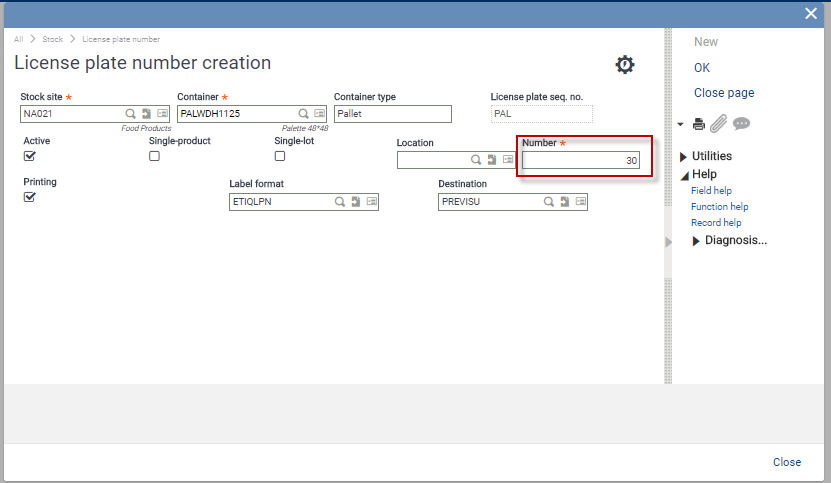
- Enter:
- The relevant storage site
- The container from which the numbers will increment. Only Internal containers can be selected.
- Specify if the license plate numbers need to be active or not.
Active license plate numbers can be viewed and used. Inactive license plate numbers are not displayed for selection. - Specify if the generated license plate numbers must be for single-products and/or single-lots.
- Specify the location if you need to locate the license plate number as soon as it is created. You can only enter a location of the Internal or Dock type.
- Enter the number of license plate numbers to be created.
- To print the bar code labels:
- Select the Printing check box.
- Specify the format of the labels to be printed and the destination printer. This information is preloaded based on the presetting.
- Click OK.
A log file is displayed. It lists all the license plate numbers that were created.
These records are loaded in the LPN table.
Unit creation
You can create license plate numbers per unit.
Open: Stock > License plate numbers > License plate numbers
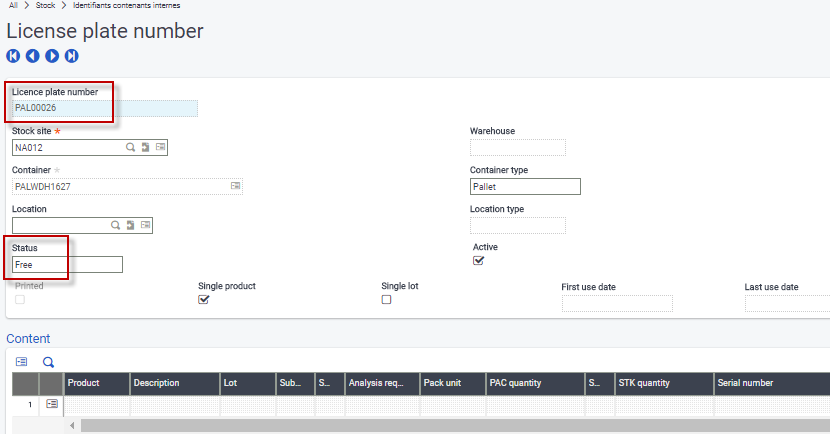
- Click New.
- Enter:
- The license plate number, or leave blank to apply the sequence number
- The relevant storage site
- The internal container used
- The location, if you need to locate the license plate number as soon as it is created
- Specify if the license plate number must be set to single-product or multi-product. For single-product, specify if the license plate number must be single-lot or multi-lot.
- Click Create:
- The container license plate number is incremented based on the container sequence number. The record data is loaded in the LPN table.
- The LPN status is Free, which means it is not linked to any product.