
How to print the container bar code labels?
Upon the stock receipt
You can choose to print the labels as soon as stock is received, based on the entry transaction setup defined for the receipt:
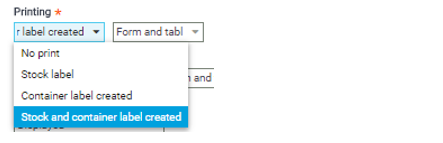
From the Stock section, in the Printing field, enter (Local menu 708):
- No print
- Stock label - The printing window of stock labels opens when creating the document.
- Container label created - The printing window of container labels opens when creating the document.
- Stock and container label created - The label printing window opens displaying two sections: Stock labels and Container labels.
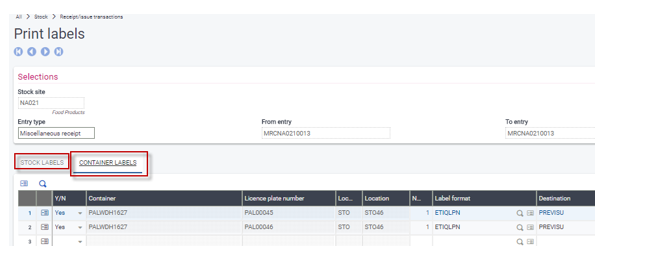
Once the printing is complete, the PRTFLG flag is set to Yes in the LPN table.
Using the Container label printing function
Print container labels (FUNLPNLBE)
Open: Stock > Labeling > Print container labels
- Use this function to view the containers to be printed or reprinted and to launch a mass printing task.
-
Click Criteria to get additional filters.
Once the printing is complete, the PRTFLG flag is set to Yes in the LPN table.
Using the License plate numbers function
License plate numbers (GESLPN)
Open: Stock > License plate numbers > License plate numbers
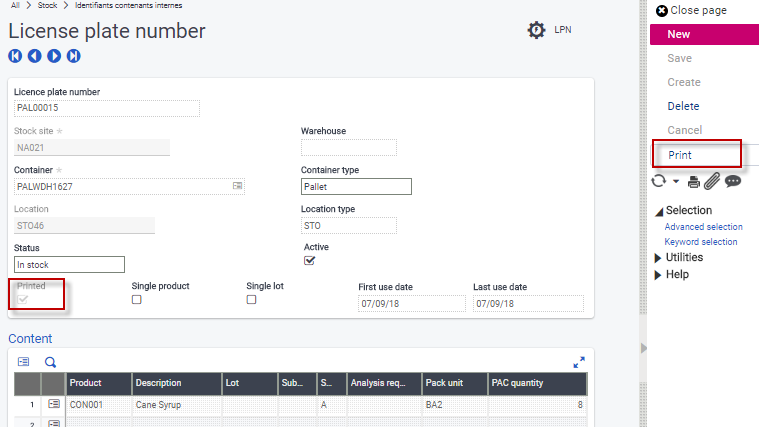
Once the license plate number has been created, click Print to print the specific label.
Once the printing is complete, the PRTFLG flag is set to Yes in the LPN table.