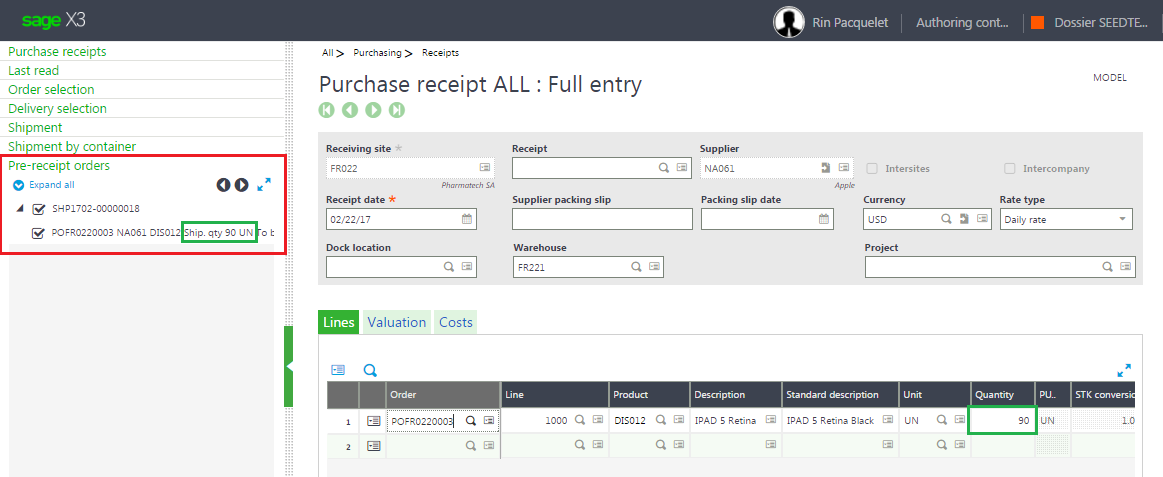
Prereceipts of purchase orders
Why?
Use this function if you do not want to use logistics management functions but you still need to know the quantities that you are going to receive against the ordered quantities.
One of the benefits is that the MRP is updated. Consequently you can plan a new order and take all the necessary steps to prevent a stock shortage before receipt.
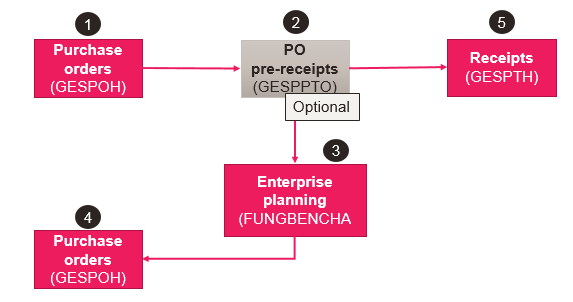
How is this function integrated into the flow?
What are the prerequisites?
Products-sites (GESITF)
- Set up the Product-site in order to create purchase orders.
How should you enter a prereceipt?
- Order management (GESPOH)
- Order prereceipt (GESPPTO)
- Receipts (GESPTH2)
- Enterprise planning (FUNGBENCH)
- Create the Order.
- Go to the Order prereceipt function:
- Select the order.
- Enter the prereceived quantity.
You are now presented with two options:
-
1st option
Go to the Purchase receipts function and receive the prereceipt.
-
Full receipt.
The order line can be closed.
-
Partial receipt.
- If you do not want to receive the remaining ordered quantity, you can close the line.
- Otherwise, close the order line only after receiving all of the ordered quantity (several receipts).
-
-
2nd option
Open the Enterprise planning function.
On the line of the order, click Shipments from the Actions icon.
You can see that you are not going to receive the whole ordered quantity.
If you choose to place a new order, you can close the order line after receiving the order line.
Setup
No prerequisites
Operating flow
- You are ordering 100 iPads from Apple.
- Your supplier informs you that only 90 iPads can be delivered.
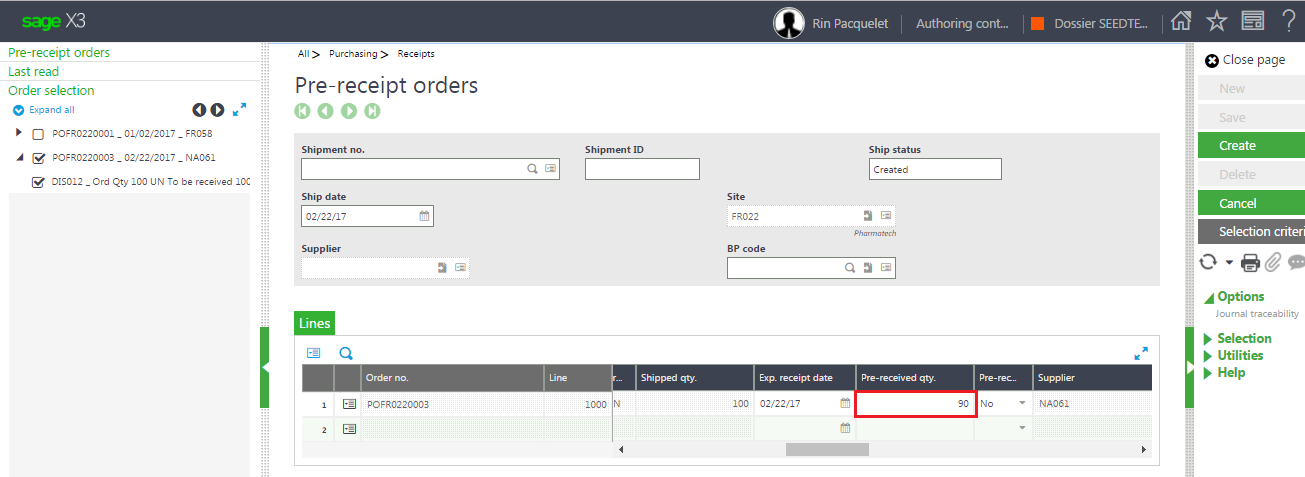
- Go to the Order prereceipt function and enter the prereceived quantity:
- In the selection panel, choose the order from the list of orders. The selected order line displays a default prereceived quantity of 100.
- Modify this quantity to 90.
Create the prereceipt.
-
Open the Enterprise planning function.
- Select the order line.
-
Click the Shipments action.

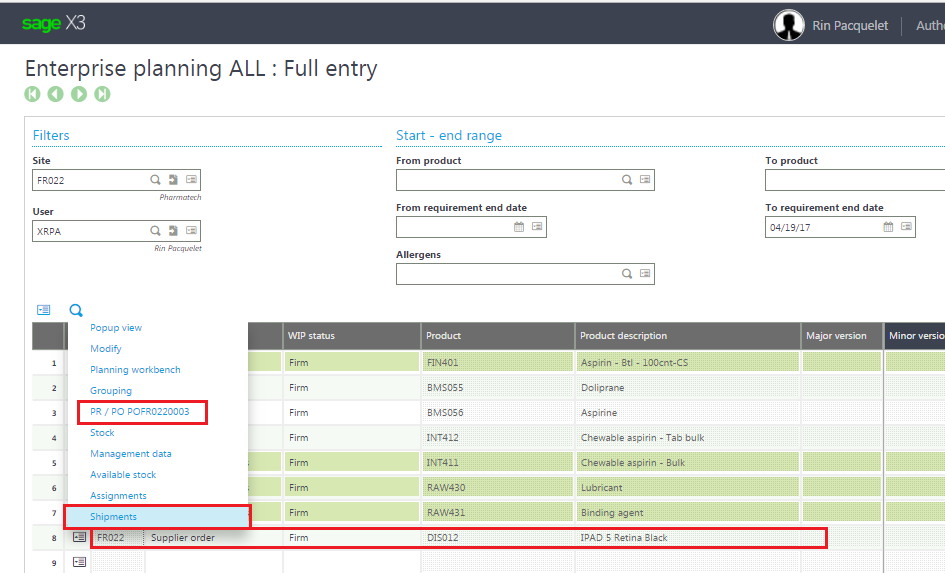

Before receiving the 90 iPads sent by Apple, you can place a new order with another supplier to obtain the 10 missing iPads.
On receiving the order line, the received quantity defaults to the value of the prereceived quantity. You can increase or decrease the quantity actually received.